















Introduction
Even if your business has an enterprise resource planning (ERP) solution, your finance team may still spend hours manually keying in invoice data, chasing approvals, following up on missing information, or confirming that an invoice made it into your accounting system. Accounts payable automation software can help fill those gaps by managing invoice capture, matching, and approvals, while the ERP remains the main accounting system.
In this article, we explain what each system does, how they work together, and when adding AP automation might make sense for your business.
What is the difference between ERP software and AP automation?
ERP software and AP automation play different roles in the invoice process:
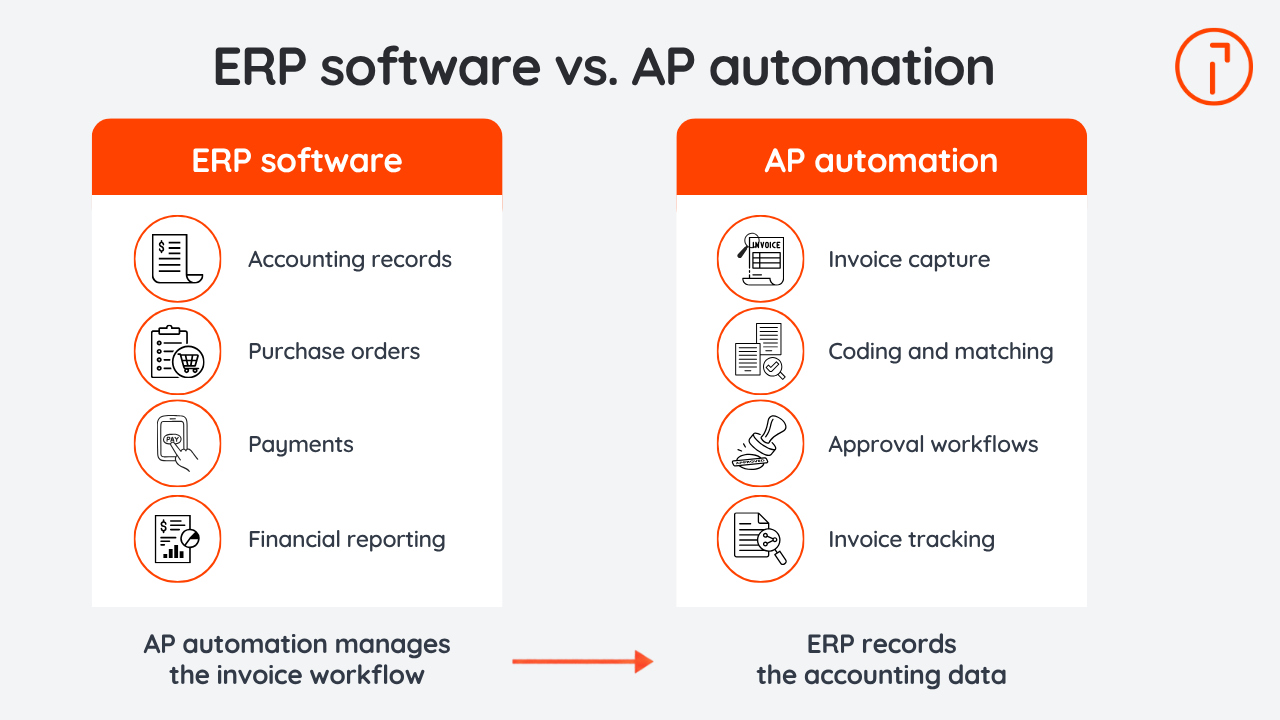
Area | ERP software | AP automation software |
|---|---|---|
Accounting | Records financial transactions (e.g., journal entries and posted invoices) | Sends approved invoice data to the ERP (e.g., supplier, amount, and coding information) |
Purchasing | Manages purchase orders (POs) and related records (e.g., PO numbers and supplier details) | Matches invoices with purchasing records (e.g., compares invoice details against the PO and goods receipt) |
Invoice processing | Records invoices in the accounting system (e.g., creates the payable entry) | Captures, codes, and routes invoices (e.g., extracts invoice data and assigns cost centers) |
Approvals | Supports purchase and invoice approvals (e.g., approval limits, requests, and reminders) | Provides configurable invoice approval workflows (e.g., routes invoices by amount or department) |
Tracking | Shows posted financial activity (e.g., displays invoices recorded in the ledger) | Tracks invoices that are still in progress (e.g., shows invoices that are waiting for review or approval) |
When connected, AP automation manages the invoice workflow while the ERP remains the main accounting system.
What accounts payable tasks can an ERP handle?
ERPs can typically handle supplier records, purchase invoices, the accounts payable ledger, and payments. Some ERP systems also support invoice matching and approval workflows, depending on how they are configured.
Before you add more software, it's best to check what your ERP can do. It may be that an existing capability hasn't been set up or fully adopted.
It's also a good idea to consider what happens outside of the ERP, for example:
Do invoices arrive in individual email inboxes?
Do managers approve invoices by email?
Do staff have to manually enter information that already exists elsewhere?
Is it difficult to see where an invoice is in the approval process?
Even if your ERP has strong accounting capabilities, these gaps can still slow down invoice processing.
When do you need accounts payable automation if you already have an ERP?
You may benefit from AP automation if parts of your process are manual, difficult to track, or are inconsistent across the business.
Here are a few things to look out for:
Staff often have to enter invoice details that already exist in another format.
Approvals are delayed because requests get lost.
Finance teams can't easily see which invoices are awaiting action.
Different locations or business units have different approval processes.
Invoice volumes are increasing faster than the team can comfortably manage.
A small team has to manage complex invoices for multiple entities.
Your ERP may be enough if its invoice capture and approval tools work well, your team uses them consistently, and processing costs are reasonable.
If those issues are taking up too much time or slowing your team down, AP automation may be worth considering.
How does AP automation work with an ERP?
AP automation works with an ERP by managing invoice capture, coding, matching, and approvals before transferring the relevant accounting information to the ERP.
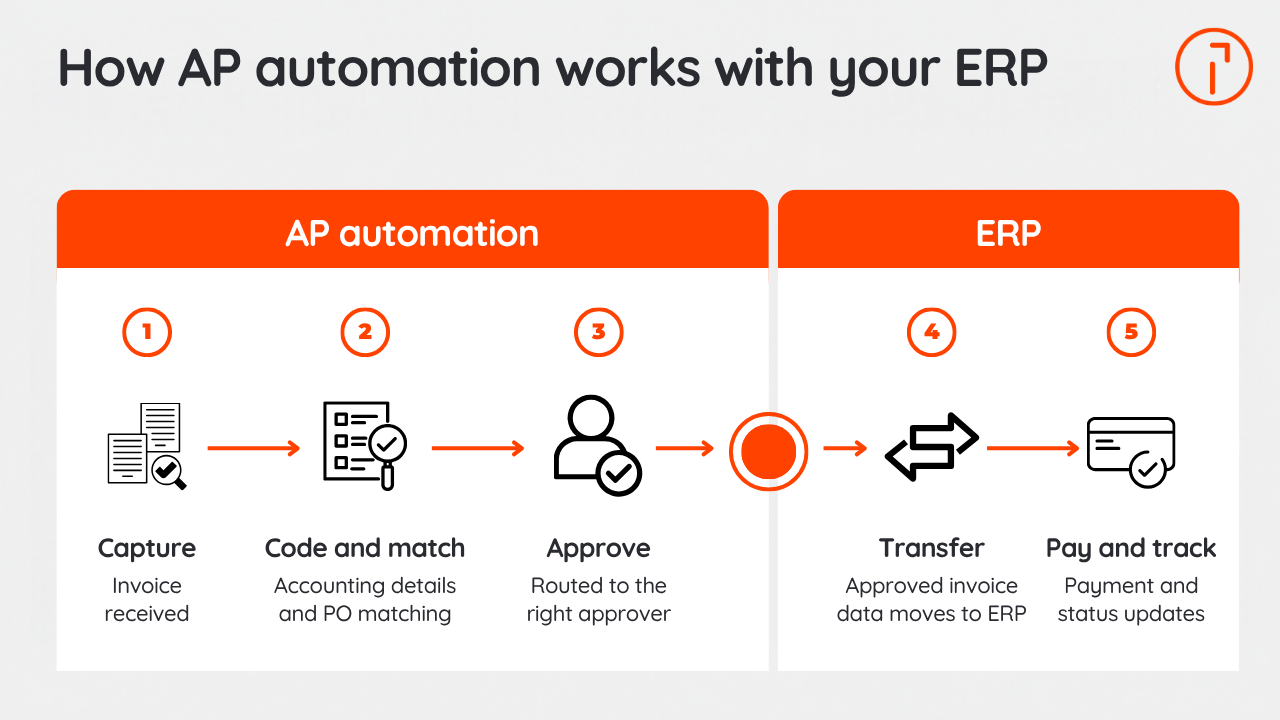
Stage | What happens |
|---|---|
1. Capture and review | The invoice is received through email, upload, or another supported channel. AP automation software then reads the invoice and extracts key details, such as the supplier name, invoice number, date, and amount, before the AP team reviews any missing or uncertain information. |
2. Code and match | Next, the invoice is coded with the required accounting details, such as the supplier, legal entity, general ledger code, and cost center. Invoices linked to a PO can be matched against the PO and, for three-way matching, goods receipt information. |
3. Approve | Workflow rules route the invoice to the appropriate approvers based on criteria such as amount, department, or entity. |
4. Transfer to the ERP | Once approved, invoice data moves to the ERP through synchronization, a scheduled transfer, or an export file, depending on how the integration is set up. |
5. Payment and status update | Vendor payments are made through the ERP, AP platform, or another payment service. Status information can then move between systems so teams can track what has been paid and identify any mismatches between systems. |
For example, an invoice received by email can be captured in the AP platform, matched against a purchase order, routed to a manager for approval, and then transferred to the ERP with its accounting codes.
What are the benefits of connecting AP automation to your ERP?
Connecting AP automation to your ERP can speed approvals, improve visibility, reduce repeated data entry, and make invoice processing more consistent.
Benefit | How it helps |
|---|---|
Less manual work | Invoice data can be captured and transferred between systems, reducing repeated data entry. |
Faster approvals | Workflow rules route invoices to the right approvers and make it easier to see where an invoice is stalled. |
Better visibility | Finance teams can see where invoices are, what is waiting for approval, and what may be blocking payment. |
More control | Configurable rules help invoices follow consistent approval steps across teams, departments, or entities. |
These benefits depend on how your system is configured and how you use it. Finance teams still need to review exceptions, keep accounting data accurate, and approve payments where required.
How do you measure the benefits of AP automation?
To see whether AP automation is really helping, compare the new process with how your team worked before.
Some useful measures include:
The time it takes you to process an invoice
The time it takes approvers to review an invoice
The number of times your team has to intervene
The time your team spends resolving transfer-related errors
The number of invoices that need to be corrected
The amount you spend on software and support
The reduction in late payment penalties or supplier inquiries
That gives you a clearer picture of whether the new process is saving time and reducing effort.
What should you check before choosing an AP integration?
Before you choose an AP integration, check that it fits the way your team already works and connects properly with your ERP.
Compare how your ERP and AP software handle the following areas:
Capability | What to check in your ERP | What to evaluate in AP software |
|---|---|---|
Invoice capture | Available capture tools and how much remaining manual entry is required | Supported file formats, extracted fields, and review options |
Approval routing | Existing rules, notifications, and visibility | Approval paths, delegation, and exception handling |
Invoice matching | Access to POs and goods receipt records | Supported matching methods and how mismatches are reviewed |
Multiple entities | Company structures and access permissions | Entity-specific workflows, coding, and user access |
Data exchange | Available interfaces and supported records | Which way data moves between systems, how often it moves, and support for custom fields |
Reporting | Visibility into posted invoices and payments | Tracking of incoming invoices and approval progress |
Features matter, but there are a few other things to check before you decide:
Your exact ERP setup: Make sure the integration supports your version, edition, and any customizations. If you use multiple ERPs, check each connection separately.
How errors are handled: Find out what happens if an invoice cannot transfer, a supplier is inactive, an accounting code is invalid, or an accounting period is closed.
How changes are managed: Check what happens if someone updates an invoice after it has already been transferred to the ERP.
The full cost: Look beyond the software subscription and include implementation, internal administration, additional entities, invoice volume charges, and integration support.
Compare your options: Weigh the cost and effort of adding AP automation against improving the workflows you already have in your ERP.
How do you implement AP automation alongside your ERP?
Before you configure anything, make sure you understand how invoices move through your business today.
Map your current process. Look at how invoices arrive, who reviews and approves them, where payments happen, and which system controls each stage.
Agree on responsibilities. Make sure it’s clear who owns approvals and payments, and who handles errors or mismatches, before you build those rules into the workflow.
Prepare your data. Review supplier records, accounting codes, and other information the integration will rely on.
Run a focused pilot. Test a manageable group of invoices, including more complex examples such as split allocations, supplier credit memos, missing POs, and invoices for different legal entities.
Check the full workflow. Make sure invoices reach the right entity and accounting period, the data transfers correctly, and exceptions are handled as expected.
Train your users. Show approvers where to find requests and give AP staff a clear process for dealing with failed transfers or other exceptions.
Review and improve. After launch, look for recurring issues and adjust the process where needed.
How does Quadient AP work with ERP systems?
Quadient AP helps finance teams manage invoices from capture and approval through to reporting and ERP integration.
Depending on your setup, it can:
Route invoices using criteria such as amount, department, or entity.
Apply approval rules across multiple legal entities, locations, or departments.
Transfer approved invoice data to the ERP through continuous synchronization or an export file, depending on the integration.
Give finance teams real-time visibility into invoice status and approval progress.
Help detect duplicate invoices before they move further through the process.
The process varies by integration, so it’s worth testing the solution with invoices that reflect your real approval process and ERP environment.
Conclusion
AP automation and ERP systems can work well together when each one has a clear role. Your ERP can remain the main accounting system, while AP automation helps reduce manual invoice work, improve approval workflows, and give finance teams better visibility into invoices before they are posted.
Start with what your ERP already does well, then look at where your team is still doing extra work. The right AP automation setup should work with your ERP and make invoice processing easier to manage.
Quadient AP helps finance teams manage invoice workflows while keeping their ERP at the center of the accounting process.
Explore Quadient AP integrations to see how the solution could work with your ERP and approval process.
